Introduction
Entra External Id is a cloud platform for managing internal and external users. It implements a Customer Identity and Access Management (CIAM) solution, allowing users to log in using their Microsoft or Google accounts.
Entra External Id is very similar to Entra Id and is the replacement for Azure B2C, which will not receive new features going forward.
Like Entra Id, Entra External Id relies on App Registration and user flows to implement authentication in your web, desktop, or mobile apps.
One frustrating aspect (at least at the time of writing) is that the claims returned by App Registrations—especially for external providers like Google—do not include the user's email by default. As shown in the screenshot below, the default email for the External Id tenant is present, but the user's Google email is missing.
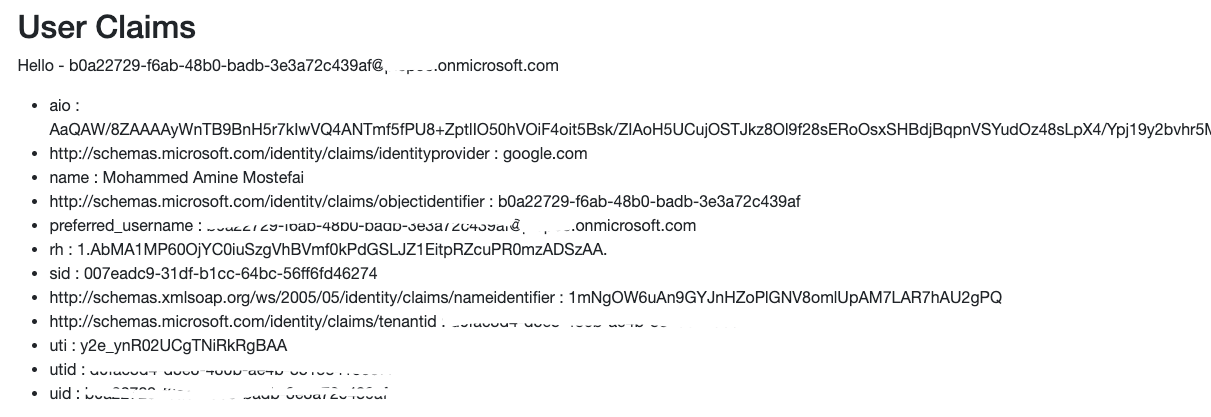
This post explains how to fix this behavior and update the App Registration to add the user email to the claims.
The Fix
1. Go to the Entra cloud portal
2. Locate your App Registration.
3. Go to the Overview page.
4. In the Overview page, click on Managed Application in Local Directory.

5. Click on Single sign-on. The following page will appear:
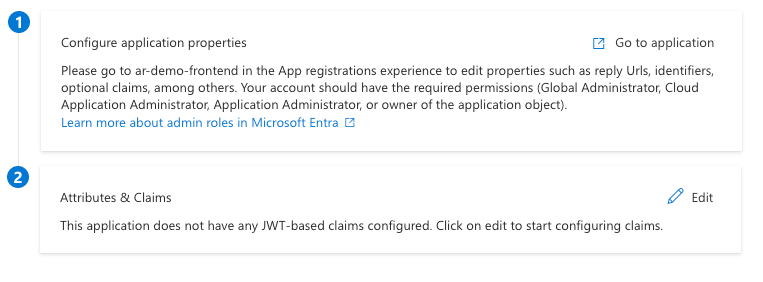
6. In the Attributes & Claims section, click on Edit. The following page appears:
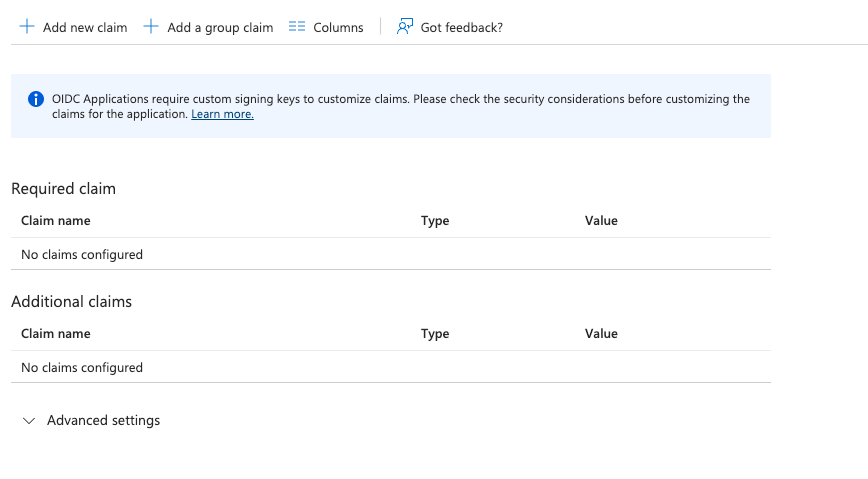
7. Click on Add new claim.
8. In the Name text box, enter emails. (This is just an example, chosen for similarity to B2C. You can use any claim name that fits your needs.)
9. If necessary, enter a namespace in the Namespace text box. (Namespaces are used to avoid claim name collisions and provide context for custom claims.)
10. In the Source attribute, select user.mail.
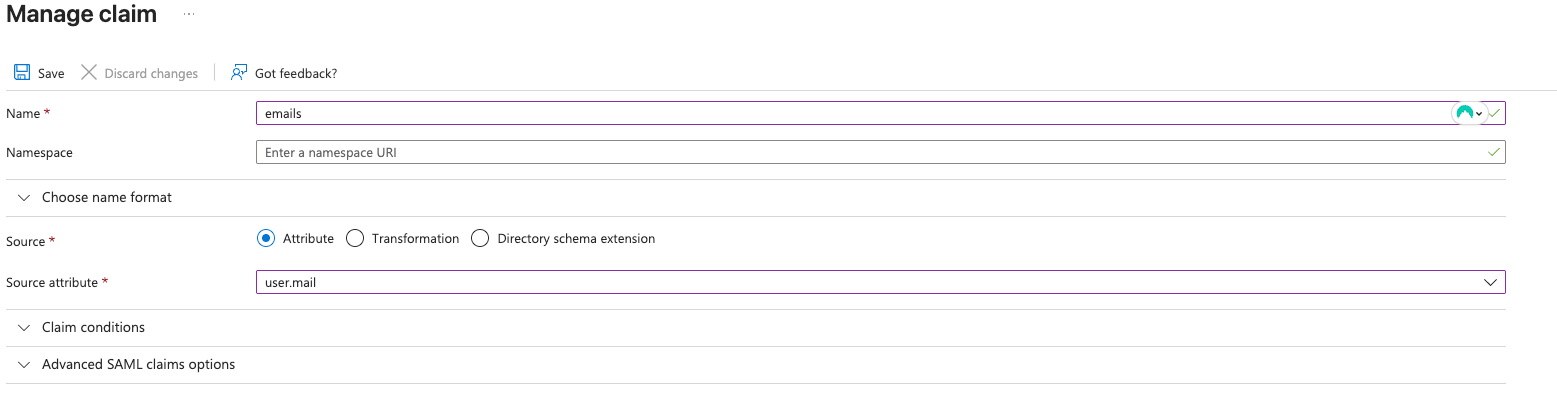
11. Click on Save.
12. Go back to your App Registration.
13. Click on Manifest.
14. Change the acceptMappedClaims property to true.

15. Click on Save.
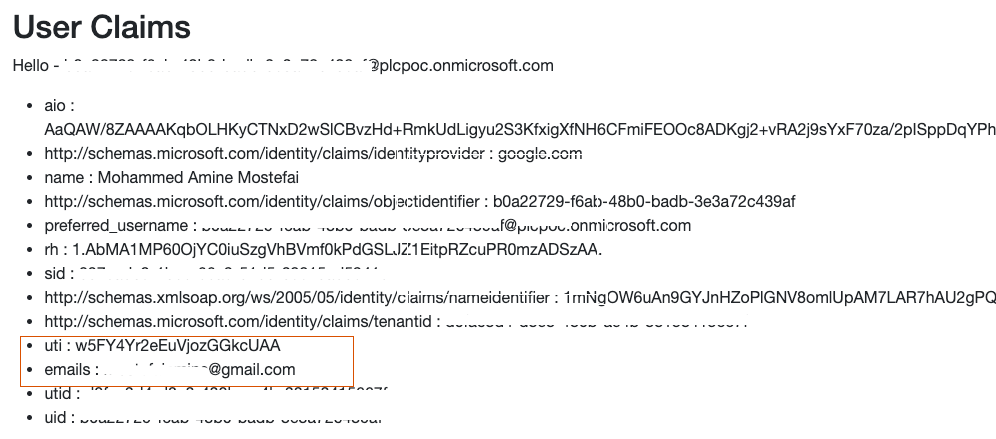
16. That's it! The next time you sign in, the email will be added with the key emails. As shown in the screenshot below, your Gmail email is now included in the claims.
Conclusion
By following these steps, you can ensure that user emails from external providers like Google are included in the claims returned by Entra External Id. This makes it easier to manage user identities and access in your applications.