By now, most people have interacted with large language models such as OpenAI’s ChatGPT, Google’s Gemini, or DeepSeek. Beyond replacing traditional web search, these AI-powered chats are increasingly being integrated into existing systems and applications.
One common characteristic of these models is that they all provide SDKs, allowing developers to integrate them easily into their applications.
What about .NET developers? While Python is largely the number one language for AI, Microsoft provides Semantic Kernel (which also exists for Python and Java), a unified framework for building AI and agentic apps.
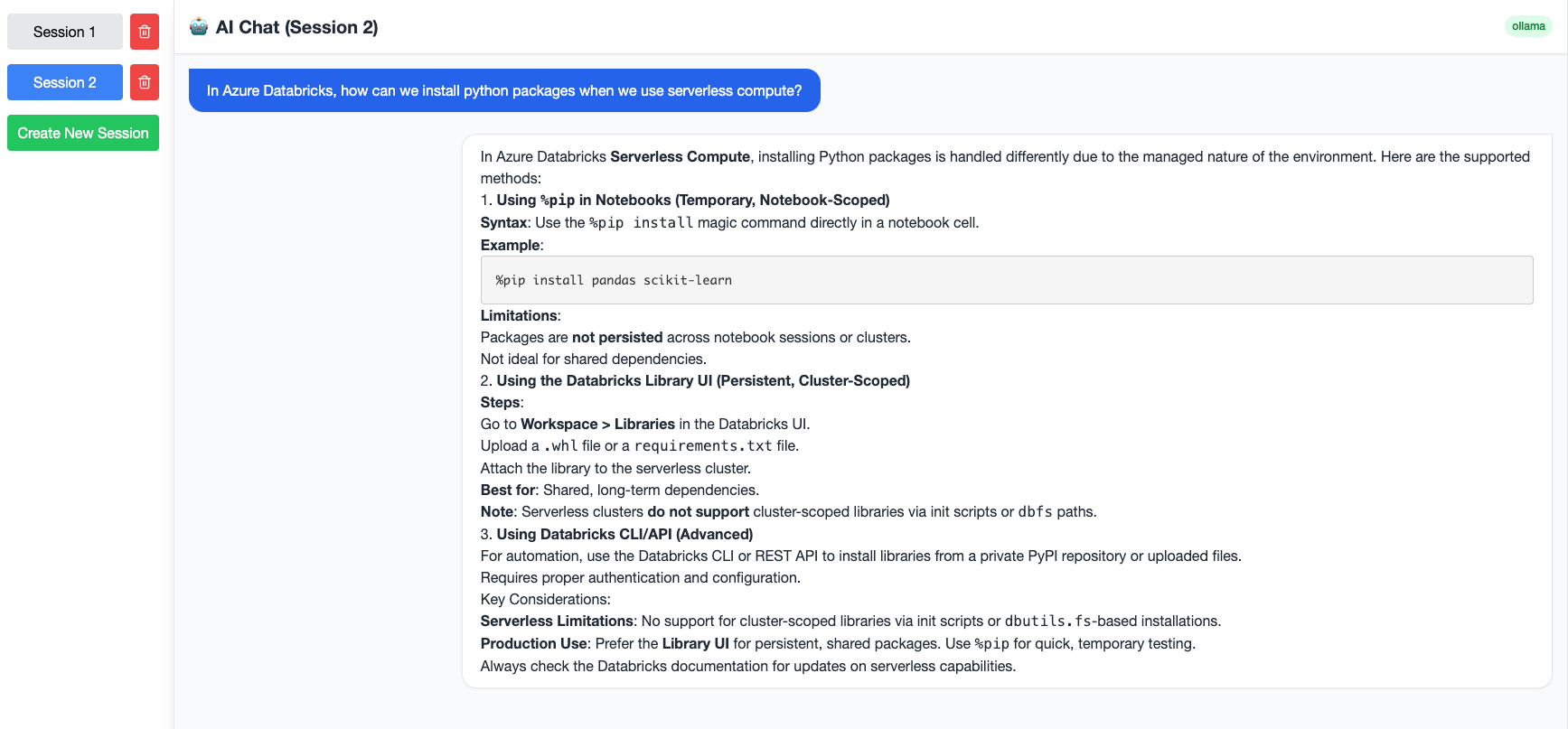
This tutorial presents how to use Semantic Kernel and Blazor Server to build an AI multi-model chat application. The chat is multi-model because it is a multi-session chat where each session can use a model from Azure AI Foundry or one hosted locally.
This tutorial answers the following questions:
- Which model to use?
- Where and how to host a model?
- How can I integrate Semantic Kernel with Blazor?
- How can I write a chat component using a model in Azure Foundry?
- How can I write a chat component using a model hosted locally with Ollama?
- How to make the Blazor app interact with the user and show the response of the model in a fashionable way?
Model Selection
There is no definite answer to this question. A lot of factors are needed for this decision: the cost, the reputation, the model type, and most importantly, the requirements. In our case, all we need is chat completions. Hence, we will use two models: GPT-4 (in Azure AI Foundry) and Qwen.
Model Hosting
Here, a lot of factors determine the choice, but you can host the model locally, deploy it to on-premise infrastructure, use the model as a MaaS (Model as a Service), or use AI cloud services such as Microsoft Foundry.
Hosting a model locally can be a good option for starter development or for POCs. In this tutorial, we will use the Qwen model deployed using Ollama. Ollama is a software that makes it very easy to install and run models locally. For example, the capture below shows the usage of the Qwen model after running the ollama ps command. Obviously, the capacity and the efficiency of the model depend on the compute power of your machine (CPU + GPU). Consider using "small" models for POCs when hosting locally.

Models can also be deployed to the company data center. Here also, scaling and efficiency depend on the availability of compute and GPU resources.
Most of the models also offer APIs to be consumed by developers (MaaS). Most of the time, developers just need an API key to start using the model. The issue with this approach is that it couples your system to a single model.
Finally, Microsoft Foundry is a cloud-based platform that allows developers to use models without thinking about the hosting. It also offers enterprise features such as agent orchestration, workflows, and compliance.
Please note that there are other services such as GitHub Models or Hugging Face that allow you to use models with eventually low/no cost.
Integrate Semantic Kernel with Blazor Server
The integration of Semantic Kernel with any ASP.NET app (including Blazor Server) is straightforward. You need to install the Microsoft.SemanticKernel package.
dotnet add package Microsoft.SemanticKernelThe Core is the foundation for Semantic Kernel, but it is not enough. We need to add the connectors for the models we need. In our case, we need Ollama and AzureOpenAI.
dotnet add package Microsoft.SemanticKernel.Connectors.AzureOpenAI
dotnet add package Microsoft.SemanticKernel.Connectors.Ollama
Ollama needs to be installed on your machine. Once there, you need to pull the model you want to use locally. For example, if you want to run Qwen, run:
ollama pull qwen:14bAll you need for Azure OpenAI is an endpoint and an API Key. For more details, see this.
The final element is to enable Semantic Kernel in your web app. For this, add the following to your bootstrap code:
var builder = WebApplication.CreateBuilder(args);

builder.AddServiceDefaults();


builder.Services
    .AddKernel()
    .AddAzureOpenAIChatCompletion(builder.Configuration["AzureOpenAI:DeploymentName"]!,
        builder.Configuration["AzureOpenAI:Endpoint"]!, builder.Configuration["AzureOpenAI:ApiKey"]!);

// Add services to the container.
builder.Services.AddRazorComponents()
    .AddInteractiveServerComponents();
The AI Components
The Chat Abstraction
The chat service abstraction is very simple:
public interface IChatService
{
    IAsyncEnumerable<string> GetStreamingResponseAsync(string prompt, CancellationToken cancellationToken);
}
It returns a result of type IAsyncEnumerable<string> to show the model's answer progressively and make the user experience better.
The Azure OpenAI Chat Implementation
public class AzureOpenAiChatService(IChatCompletionService chat) : IChatService
{
    private ChatHistory _history = new("You are a helpful assistant that provides concise and accurate information.");
    private readonly ChatHistorySummarizationReducer _reducer = new(chat, 2, 2);


    public async IAsyncEnumerable<string> GetStreamingResponseAsync(string prompt,
        [EnumeratorCancellation] CancellationToken cancellationToken)
    {
        if (string.IsNullOrWhiteSpace(prompt))
        {
            yield break;
        }

        var currentAssistantMessage = new StringBuilder();

        _history.AddUserMessage(prompt);
        await foreach (var elt in chat.GetStreamingChatMessageContentsAsync(_history,
                           cancellationToken: cancellationToken))
        {
            if (string.IsNullOrWhiteSpace(elt.Content)) continue;
            currentAssistantMessage.Append(elt.Content);
            yield return elt.Content;
        }

        _history.AddAssistantMessage(currentAssistantMessage.ToString());

        _history = await _history.ReduceAsync(_reducer, cancellationToken);
    }
}
Please note:
- we keep the session chat history in the
ChatHistoryobject - We have set a system prompt to specify how the responses should be
- Every time, we append the model response to the history
- We use a history reducer to minimize the number of tokens we send to the model. This is very important for cost optimization.
- The chat completion service is injected to the chat using Asp.NET DI
The Ollama Chat Implementation
public class OllamaChatService : IChatService
{
    private readonly ILogger<OllamaChatService> _logger;
    private readonly IChatCompletionService _chat;
    private readonly ChatHistory _history;

    public OllamaChatService(IConfiguration config, ILogger<OllamaChatService> logger)
    {
        _logger = logger;
        var model = config["Ollama:ModelId"] ?? throw new InvalidOperationException("Model");
        var endpoint = config["Ollama:Endpoint"] ?? throw new InvalidOperationException("Endpoint");
        _logger.LogInformation($"Ollama Chat Service started at {endpoint}");
        var client = new OllamaApiClient(new Uri(endpoint), model);
        _chat = client.AsChatCompletionService();
        _history = new ChatHistory("Be concise, clear, professional and creative when answering.");
    }


    public async IAsyncEnumerable<string> GetStreamingResponseAsync(string prompt,
        [EnumeratorCancellation] CancellationToken cancellationToken)
    {
        if (string.IsNullOrWhiteSpace(prompt))
        {
            yield break;
        }

        _history.AddUserMessage(prompt);

        var currentAssistantMessage = new StringBuilder();

        await foreach (var element in _chat.GetStreamingChatMessageContentsAsync(_history,
                           cancellationToken: cancellationToken))
        {
            if (string.IsNullOrEmpty(element.Content)) continue;
            currentAssistantMessage.Append(element.Content);
            yield return element.Content;
        }

        _history.AddAssistantMessage(currentAssistantMessage.ToString());
    }
}
The implementation is very similar except:
- We create the chat completion manually instead of using DI:
  var client = new OllamaApiClient(new Uri(endpoint), model);
_chat = client.AsChatCompletionService();- We do not use history reducers since the model runs locally
The UI Components
The Model Selector
The model selector asks the user to choose the model before starting a chat session.
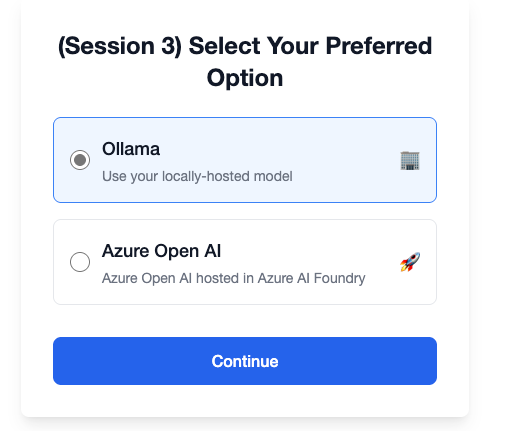
The two chat implementations are registered using keyed dependency injection. The model selector instantiates the chat using the key and starts a new session.
 private void OnModelSelected(string model)
    {
        _model = model;
        _chat = ServiceProvider.GetRequiredKeyedService<IChatService>(model);
    }
The Chat Component
This component:
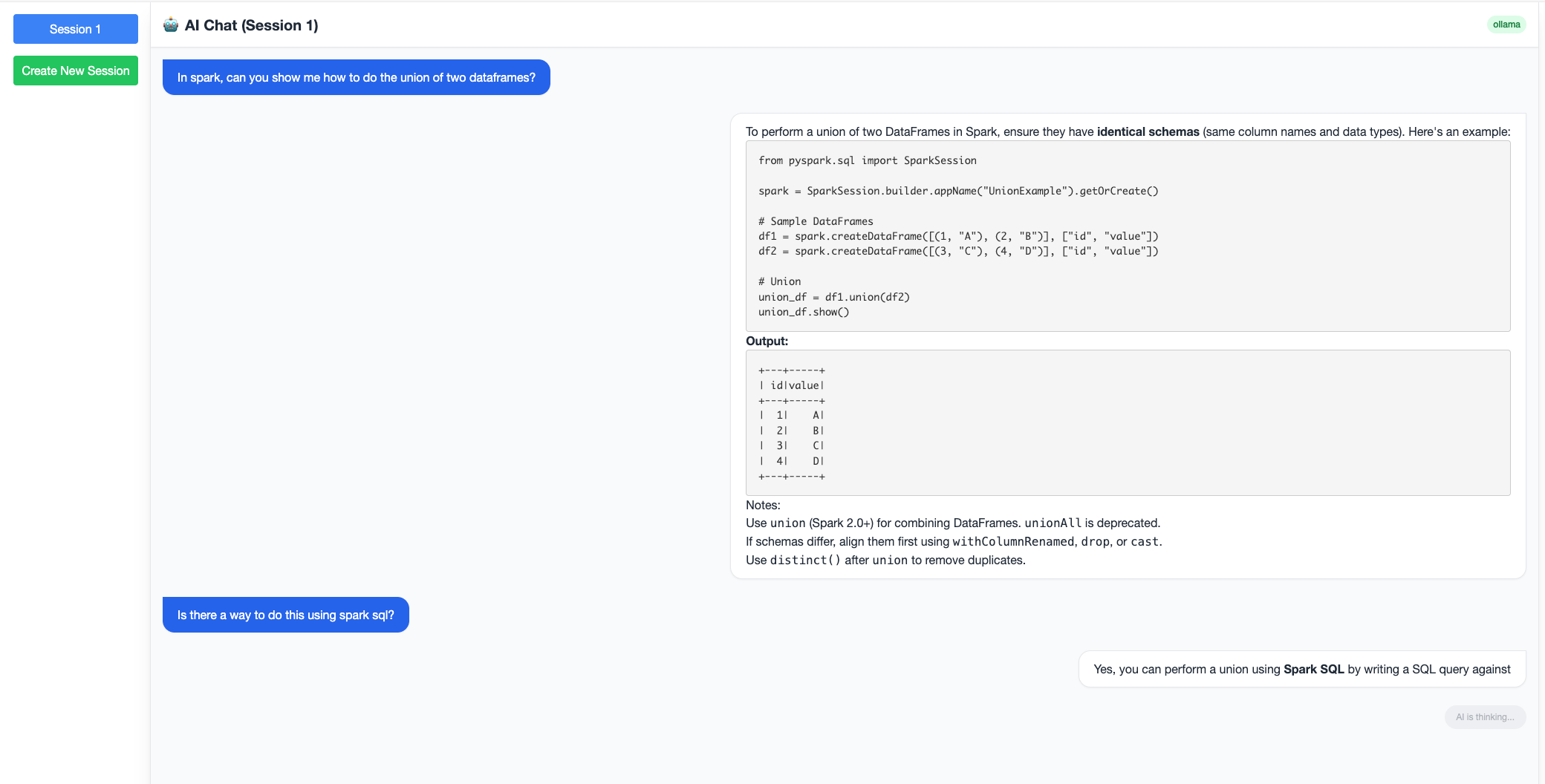
- Shows the conversation history
- Allows the user to ask a question
- Shows progressively the model response
- Shows a thinking indicator
The SendMessage method
private async Task SendMessage()
    {
        if (string.IsNullOrWhiteSpace(_userInput)) return;

        // 1. Add User Message
        _messages.Add(new ChatMessage { Content = _userInput, IsUser = true });
        var prompt = _userInput;
        _userInput = "";

        // 2. Prepare AI Response Placeholder
        var aiMessage = new ChatMessage { Content = "", IsUser = false };
        _messages.Add(aiMessage);
        // enable thinking indicator
        _isTyping = true;

        // 3. Force UI Update & Scroll
        StateHasChanged();
        await ScrollToBottom();

        // 4. Stream Response
        _cts = new CancellationTokenSource();
        try
        {
            await foreach (var chunk in Chat.GetStreamingResponseAsync(prompt, _cts.Token))
            {
                // show progressively the model output
                aiMessage.Content += chunk;
                StateHasChanged();
                await ScrollToBottom();
            }
        }
        finally
        {
            // disable thinking indicator
            _isTyping = false;
            StateHasChanged();
            await ScrollToBottom();
        }
    }
The UI
 <div id="chat-container" class="flex-1 overflow-y-auto p-4 space-y-6 scroll-smooth">
        @foreach (var message in _messages)
        {
            <div class="flex w-full @(message.IsUser ? "justify-start" : "justify-end")">
                <div class="max-w-[80%] rounded-2xl px-5 py-3 shadow-sm
                            @(message.IsUser
                                ? "bg-blue-600 text-white rounded-tl-none"
                                : "bg-white border border-gray-200 text-gray-800 rounded-tr-none")">

                    @if (message.IsUser)
                    {
                        <p>@message.Content</p>
                    }
                    else
                    {
                        <div class="chat-answer prose prose-sm max-w-none
                                    dark:prose-invert
                                    prose-p:my-1 prose-headings:my-2 prose-pre:bg-gray-800 prose-pre:text-gray-100">
                            @((MarkupString)Markdown.ToHtml(message.Content, _pipeline))
                        </div>
                    }
                </div>
            </div>
        }

        @if (_isTyping)
        {
            <div class="flex w-full justify-end animate-pulse">
                <div class="bg-gray-200 rounded-full px-4 py-2 text-xs text-gray-500">
                    AI is thinking...
                </div>
            </div>
        }
    </div>
Notes
- We are using Markdig package as the model output uses markdown format
- We use aspire for the app telemetry
- The app uses tailwind CSS for styling
- You need an Azure Subscription and a deployed model in Azure AI foundry if you want to use the AzureOpenAIChat
Captures
Chat Tab
Multi-Session Chats
Source Code
The code of this app can be obtained here: https://github.com/nubiquest-blogs/2025-12-multi-model-ai-chat-blazor